
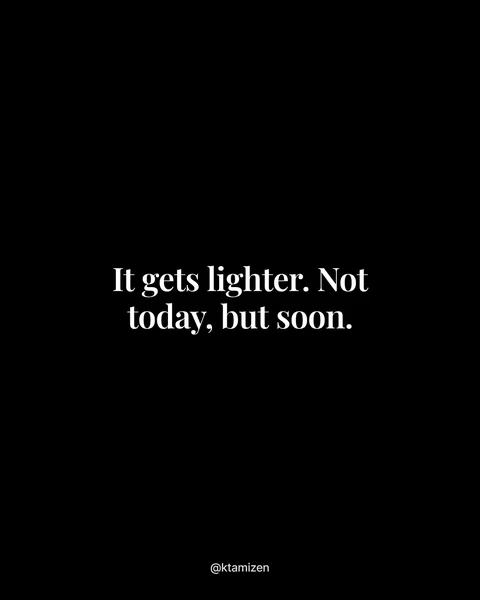
A quote post has nowhere to hide. On a photo, a little softness looks like mood. On white words over black, every blurry edge shows. We post text on plain backgrounds every day on @ktamizen, and our posts were seen 45.2 million times in the last 90 days (proven data from Instagram Insights, November 2026), so we have had to get this right.
The four causes at a glance
| Cause | What you see | Fix |
|---|---|---|
| Wrong size | Soft text, odd crop | Export at 1080 × 1350 px (4:5) |
| Upload setting off | Sharp in Photos, soft on Instagram | Turn on Upload at highest quality |
| Thin font | Letters break up, fuzzy halo | Use a bolder weight, bigger size |
| App exports small | Sharp in the editor, soft after saving | Check the saved file size, change app |
1. Export at the size Instagram wants
Instagram shows feed posts 1080 pixels wide. If you upload something smaller, it gets stretched and goes soft. If you upload a strange size, it gets cropped and scaled. Make every post 1080 × 1350 px (4:5) for the feed, or 1080 × 1920 for Stories. Full list: Instagram post sizes in 2027.
2. Turn on Upload at highest quality
Instagram has a setting that lowers upload quality to save data, and it can be switched off without you noticing. In Instagram go to your profile, open the menu, then Settings and activity → Media quality and turn on Upload at highest quality. Upload on Wi-Fi when you can.
3. Pick a font that survives compression
Instagram compresses every image. Thin, light fonts lose the most, because their strokes are only a pixel or two wide. For long quotes use a regular or bold weight, and keep the text big enough to read at arm's length. Our most viewed posts all use thick letters in red or white on black.
4. Check what your app really saves
This is the one people miss. Some apps show a sharp preview, then save a smaller or recompressed file. App Store reviews of quote and carousel makers are full of it: one user paid for a carousel app and wrote that the carousel was still blurry once it reached Instagram. Open the saved image in Photos, swipe up, and check the size. If it is under 1080 pixels wide, the app is the problem.
Our free quote maker saves a PNG at the full Instagram width, 1080 pixels, so the file you post is the one you saw on screen.
Other things that soften a post
- Screenshots of screenshots. Every screenshot and every re-save loses detail. Export once, post that file.
- Sending the image through chat apps first. Many messengers compress photos. Save straight to Photos.
- Tiny text on a busy photo. Compression eats fine detail first. Darken the photo or make the text bigger.
- Editing after upload. Instagram's own filters and crops re-encode the image. Do the design in your editor.
Questions
Why do my Instagram posts look blurry after uploading?
Usually the image is not 1080 px wide, the Upload at highest quality setting is off, the font is too thin, or the app exported a smaller file than it showed.
What size should a quote post be to stay sharp?
1080 x 1350 pixels (4:5) for feed posts and carousels, 1080 x 1920 for Stories and Reels.
Is PNG or JPEG better for Instagram?
Instagram converts everything to its own compressed format. PNG keeps text edges cleaner before upload; JPEG at high quality works too. The size and font matter more.
Where is the Upload at highest quality setting?
In Instagram: profile, menu, Settings and activity, Media quality, Upload at highest quality.
Make your next post now
Our free quote maker is free and runs in your browser, with nothing to install. For quotes on your Lock Screen and Home Screen every day, there is KTAMIZEN for iPhone.